

Are you ready to say goodbye to your Fitbit account but not sure how to do it? Deleting your Fitbit account might seem tricky at first, but it’s actually simpler than you think.
Whether you want to protect your privacy, start fresh, or just move on, this guide will walk you through every step clearly and quickly. Keep reading, and by the end, you’ll have full control over your Fitbit data and know exactly how to close your account safely.
Let’s get started!
Credit: www.pocket-lint.com
Reasons To Delete Fitbit Account
Deleting your Fitbit account is a decision some users make for various reasons. It often relates to personal privacy, device changes, or managing online data.
Understanding why people delete their Fitbit accounts can help you decide if it is the right choice for you.
Privacy Concerns
Fitbit collects health and activity data. Some users worry about how this data is stored and shared.
Deleting your account stops Fitbit from holding your personal information and activity records.
- Protects sensitive health information
- Prevents data sharing with third parties
- Reduces risk of data breaches
Switching To Another Device
You may want to delete your Fitbit account if you buy a new fitness tracker. This helps avoid confusion between devices.
Starting fresh with a new device means you can create a new account or use a different app without old data.
- Prevents mixing old and new device data
- Simplifies managing fitness information
- Allows use of different app features
Reducing Digital Footprint
Some users want less online data about themselves. Deleting accounts helps reduce the digital footprint.
Removing your Fitbit account removes personal details from Fitbit servers and limits data stored online.
- Limits exposure of personal information
- Helps control online presence
- Reduces chances of identity misuse
Credit: www.pocket-lint.com
Preparing To Delete Account
Deleting your Fitbit account is permanent. It removes all your data and settings.
Before you delete, take steps to save your information and stop active services.
Backing Up Your Data
You should save your Fitbit data before deleting your account. This keeps your activity and health records.
Fitbit lets you export your data as a file you can keep on your device.
- Log in to your Fitbit account on the website.
- Go to the settings or data export section.
- Choose the data range you want to save.
- Download the file to your computer or phone.
Canceling Subscriptions
If you have Fitbit Premium or other paid plans, cancel them first. This stops future charges.
Check your subscription status in your account settings and follow the steps to cancel.
- Open Fitbit app or website and sign in.
- Go to the subscriptions or billing section.
- Find your active plans and select cancel.
- Confirm the cancellation to stop payments.
Unlinking Connected Apps
Fitbit may be connected to other apps or devices. Unlink these before deleting your account.
This prevents syncing problems and keeps your other apps working properly.
- Open Fitbit app or website and sign in.
- Go to the apps or connected devices section.
- Review all linked apps and devices.
- Select each one and choose to disconnect or unlink.
Step-by-step Account Deletion
If you want to delete your Fitbit account, you can do it easily by following a few steps. This guide will help you remove your account quickly.
Make sure you understand that deleting your account will erase all your data. After deletion, you cannot recover your information.
Accessing Fitbit Settings
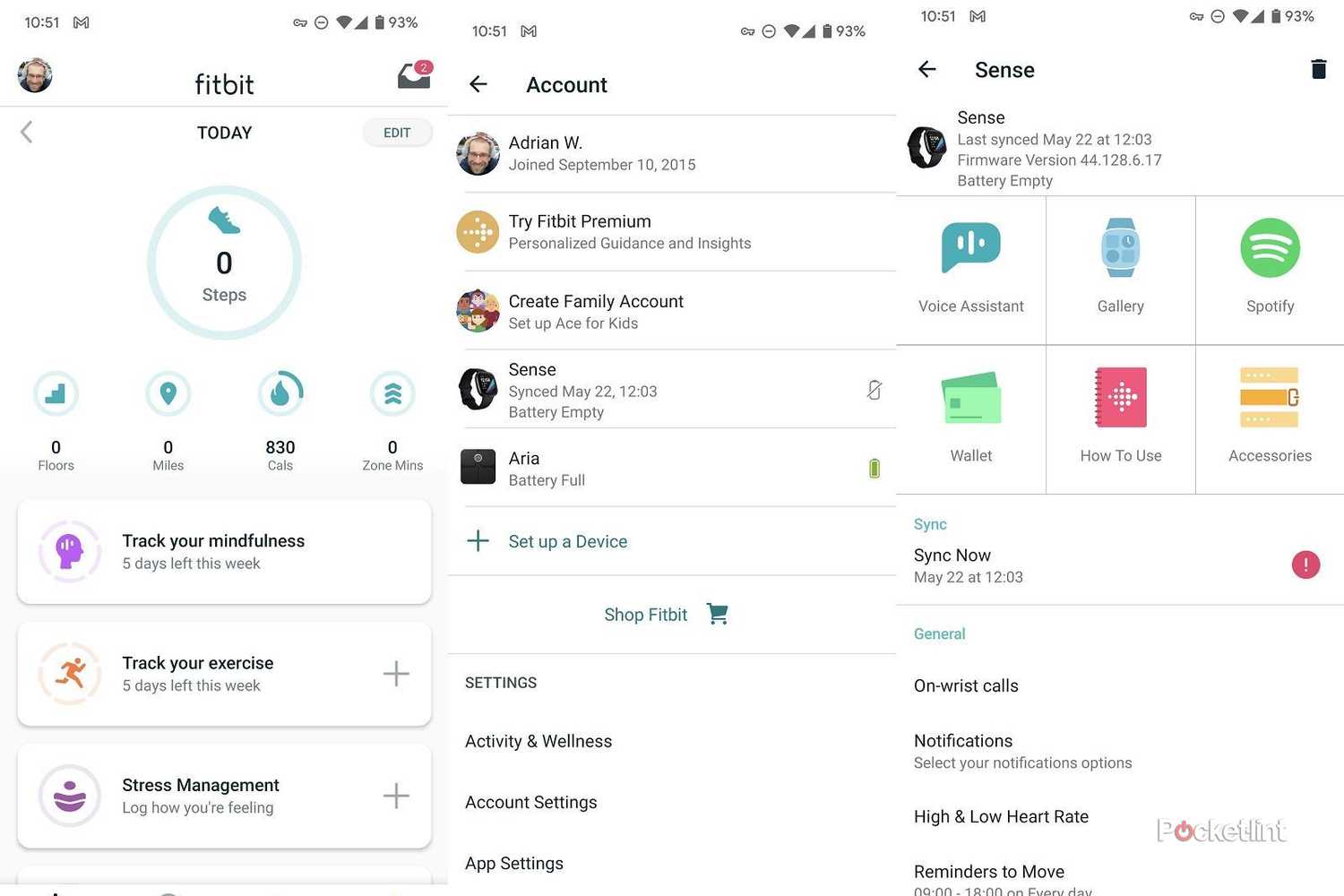
First, open the Fitbit app or go to the Fitbit website. Log in with your username and password to access your account.
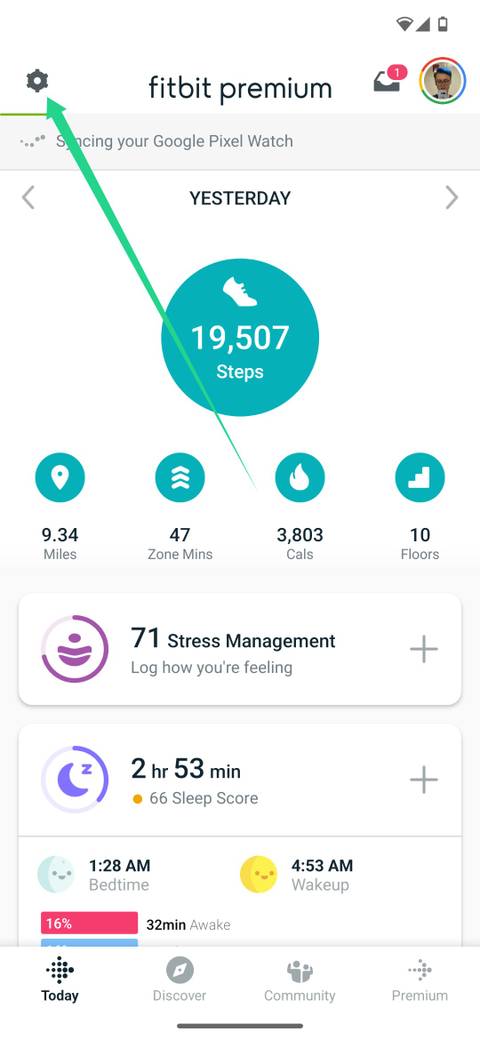
Once logged in, find the settings menu. It is usually represented by a gear icon or found under your profile picture.
Navigating To Account Deletion
In the settings menu, look for the option labeled “Account Settings” or “Privacy & Security.” Click on it to open more options.
Scroll down until you see “Delete Account” or “Close Account.” Click on this option to start the deletion process.
- Open settings from your profile
- Choose “Account Settings” or similar
- Find and select “Delete Account”
Confirming The Deletion Process
Fitbit will ask you to confirm your decision. This step prevents accidental deletion of your data.
Read the warning message carefully. If you want to continue, enter your password again and confirm the deletion.
- Review the warning about data loss
- Enter your password to confirm
- Click “Delete” to finish
After Deletion Actions
Deleting your Fitbit account is an important step. After you delete it, there are a few tasks to complete. These actions help you clean up and protect your data.
Follow the steps below to remove apps, check for leftover data, and get help if needed.
Removing Fitbit App From Devices
After deleting your account, uninstall the Fitbit app from your phone and other devices. This stops the app from trying to sync with your deleted account.
Removing the app also frees up space and reduces background activity on your devices.
- On iPhone, press and hold the app, then tap “Remove App.”
- On Android, press and hold the app, then select “Uninstall.”
- On computers, uninstall Fitbit software via system settings.
Checking For Residual Data
Deleting your Fitbit account removes most data from Fitbit servers. Still, check other places where data might remain.
Look in any connected apps or devices where Fitbit data was shared or stored.
- Check health apps on your phone that synced Fitbit data.
- Review cloud storage services for Fitbit backups.
- Delete any exported files you saved before deleting your account.
Contacting Support If Needed
If you see data still linked to your deleted account, contact Fitbit support. They can help clear any leftover data.
Support can also answer questions about your account deletion and privacy.
- Visit Fitbit’s official support page.
- Use the contact form or chat option.
- Provide your account details and explain the issue clearly.
Tips For Maintaining Privacy Online
Keeping your personal information safe online is very important. Many apps collect data that you may not want to share.
Deleting your Fitbit account is one way to protect your privacy. Here are some tips to help you stay safe online.
Regular Account Audits
Check your online accounts often. Look for unusual activity or changes you did not make.
Remove accounts you no longer use. This lowers the chance of your data being stolen or misused.
- Review account settings monthly
- Delete inactive accounts
- Update personal information carefully
Using Strong Passwords
Create passwords that are hard to guess. Use a mix of letters, numbers, and symbols.
Do not use the same password for many accounts. Change your passwords regularly to keep them safe.
- Use at least 12 characters
- Avoid common words or dates
- Use a password manager to store passwords
Managing App Permissions
Apps ask for permission to access your data. Only allow what is necessary for the app to work.
Check app permissions in your device settings. Remove permissions for apps you do not trust or use.
- Review permissions regularly
- Limit location and camera access
- Uninstall apps that ask for too much data
Credit: www.androidpolice.com
Frequently Asked Questions
How Do I Permanently Delete My Fitbit Account?
To permanently delete your Fitbit account, log in to the Fitbit website. Go to ‘Settings’ and select ‘Delete Account’. Follow the on-screen instructions to confirm. Your data will be erased in 30 days. Ensure you back up any necessary information before proceeding.
Can I Recover A Deleted Fitbit Account?
Once deleted, a Fitbit account cannot be recovered. Deleting your account removes all data permanently. Make sure to back up any important information beforehand. If unsure, consider deactivating temporarily instead of deleting permanently.
What Happens To My Data After Deletion?
After deletion, Fitbit retains your data for 30 days. This allows for recovery if deletion was accidental. Post this period, all your data is permanently erased from Fitbit’s servers. Ensure to back up any vital data before deleting your account.
Can I Delete My Fitbit Account Through The App?
Yes, you can delete your Fitbit account through the app. Open the app, go to ‘Account Settings’, and select ‘Delete Account’. Follow the prompts to confirm deletion. Ensure you have backed up any essential data before proceeding with this action.
Conclusion
Deleting your Fitbit account is simple and clear. Just follow the steps carefully. Make sure you really want to delete it, as this action is final. Removing your account stops all data syncing and deletes your info. Take your time to back up any data you want to keep.
This guide helps you finish the process without confusion. Now you can manage your Fitbit account the way you want. Stay in control of your personal information easily.


