

Are you wondering how to update your Fitbit but don’t know where to start? Keeping your Fitbit up to date is key to making sure it works smoothly and gives you the best features.
If your device is slow, missing new options, or not syncing right, an update might be just what it needs. In this guide, you’ll learn simple, step-by-step ways to update your Fitbit quickly and easily. By the end, you’ll feel confident that your device is running at its best.
Let’s dive in and get your Fitbit updated!
Credit: tech.yahoo.com
Check Fitbit Compatibility
Before updating your Fitbit, check if your device supports the update. Not all Fitbit models can update to the latest software.
Also, your phone or computer must meet certain requirements. This helps the update process work well.
Supported Devices
Fitbit updates work only on specific devices. Older models may not get new updates.
- Fitbit Charge 3 and later
- Fitbit Versa series
- Fitbit Sense
- Fitbit Inspire 2 and later
- Fitbit Luxe
Check your device model in the Fitbit app or on Fitbit’s website to confirm update support.
Required Software Versions
Your phone’s operating system must be up to date to install Fitbit updates. Older software may block updates.
| Device Type | Minimum OS Version |
|---|---|
| iPhone | iOS 13 or later |
| Android Phone | Android 8.0 or later |
| Windows PC | Windows 10 or later |
| Mac | macOS 10.14 or later |
Make sure your Fitbit app is the latest version. Update it through your app store if needed.

Credit: www.youtube.com
Prepare Your Fitbit For Update
Updating your Fitbit keeps it running smoothly and adds new features. Before starting, you must prepare your device.
Preparation helps avoid errors during the update process. Follow these steps to get ready.
Charge Your Device
Your Fitbit needs enough power to complete the update. Charge it fully before you start.
Low battery can stop the update and cause problems. Plug your Fitbit into its charger and wait until it shows full charge.
Connect To Wi-fi Or Bluetooth
Fitbit updates require a stable connection. Connect your device to Wi-Fi or Bluetooth for a smooth update.
Check that your phone or computer is near your Fitbit and has a strong signal. This helps the update download without interruptions.
Update Using Fitbit App
Keeping your Fitbit device updated helps it run smoothly. The easiest way to update is through the Fitbit app.
This guide will show you how to update your Fitbit using the app on your phone.
Open The Fitbit App
First, unlock your phone and find the Fitbit app. Tap the app icon to open it.
Make sure you are signed in to your Fitbit account to access your device settings.
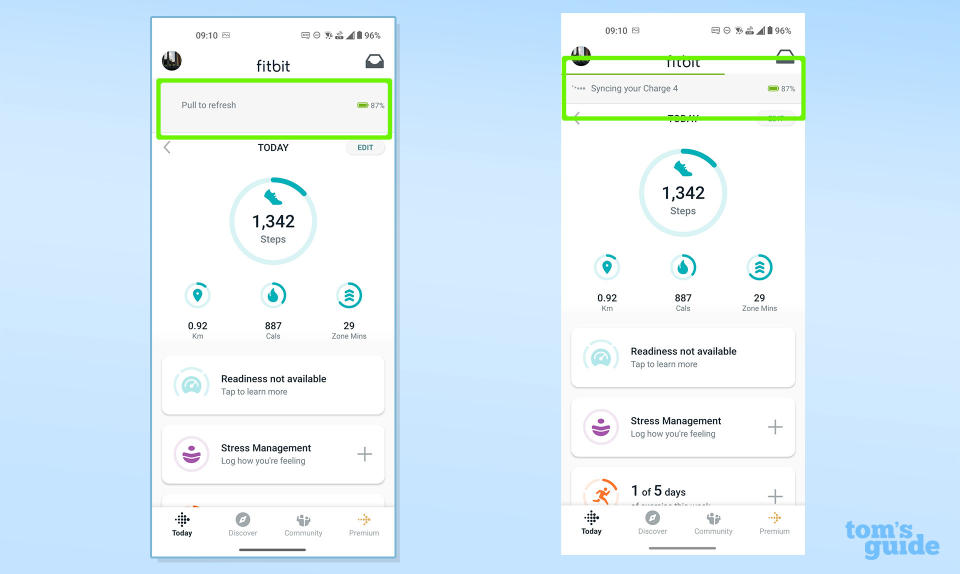
Sync Your Device
Syncing connects your Fitbit device with the app. This step lets the app check if an update is available.
- Keep your Fitbit near your phone.
- Open the app’s dashboard.
- Pull down the screen to start syncing.
- Wait until the sync completes.
Start The Update Process
If an update is ready, the app will show a notification. Tap the notification to begin updating.
Keep your Fitbit and phone close together. Do not close the app until the update finishes.
- Tap “Update” on the app.
- Wait while your Fitbit downloads and installs the update.
- Your Fitbit may restart during the process.
- Once done, your Fitbit is updated.

Credit: beautyeliteproducts.medium.com
Update Manually Via Fitbit Website
Updating your Fitbit device keeps it working well. You can update it yourself using the Fitbit website. This is useful if your device does not update automatically.
The manual update process includes downloading the latest firmware and installing it on your Fitbit. Follow the steps below to update your device.
Download Firmware
Go to the Fitbit website and log in to your account. Find your device model in the support or downloads section.
Download the latest firmware file for your device. Save it to a folder you can easily find on your computer.
- Open fitbit.com and sign in
- Navigate to support or downloads
- Select your Fitbit device model
- Download the latest firmware file
- Save the file on your computer
Install Update On Device
Connect your Fitbit to your computer using the charging cable. Open the Fitbit software or app on your computer.
Follow the instructions to upload the firmware file to your device. Wait for the update to finish before disconnecting the Fitbit.
- Plug Fitbit into your computer
- Open Fitbit app or software
- Upload the downloaded firmware file
- Wait for update to complete
- Disconnect your Fitbit safely
Troubleshoot Update Issues
Keeping your Fitbit updated is important for its performance. Sometimes, updates may not install correctly. This guide helps you fix common update problems.
Follow these simple steps to solve update issues on your Fitbit device.
Common Errors
Fitbit update errors can happen for many reasons. These include connection problems, low battery, or app glitches.
- Bluetooth disconnects during update
- Device battery is below 50%
- Fitbit app crashes or freezes
- Update gets stuck or fails to download
Make sure your phone and Fitbit are close together. Charge your Fitbit before updating.
Resetting Your Fitbit
If updates still fail, try resetting your Fitbit. This can clear minor software problems.
There are two types of resets: soft reset and factory reset. A soft reset restarts your device without deleting data.
- Soft reset: Hold the button(s) for 10 seconds until the Fitbit logo appears.
- Factory reset: Use the Fitbit app or device settings. This erases all data.
Try a soft reset first. Use a factory reset only if other steps fail.
Contacting Support
If you cannot update your Fitbit after trying fixes, contact Fitbit support. They can help solve complex issues.
Prepare your device details and error messages before reaching out. This helps support find a solution faster.
- Visit the official Fitbit support website
- Use the Fitbit app help section
- Call or chat with customer service
- Provide details like model and update error
Tips For Smooth Updates
Updating your Fitbit keeps it running well and adds new features. Follow these tips to avoid problems during updates.
Simple steps make the update process faster and easier. Stay prepared before you start updating your device.
Maintain Stable Connections
Make sure your phone and Fitbit have a strong Bluetooth connection. A weak connection can stop the update.
Keep both devices close during the update. Avoid moving away or turning off Bluetooth while updating.
- Turn on Bluetooth on your phone
- Keep Fitbit and phone within 10 feet
- Charge your Fitbit before updating
- Turn off airplane mode on your phone
Regularly Check For Updates
Check your Fitbit app often for new updates. Updates fix bugs and improve device performance.
Install updates as soon as they are available. Waiting too long can cause your Fitbit to stop working properly.
- Open the Fitbit app on your phone
- Go to your device settings
- Tap “Check for update”
- Follow on-screen instructions if update is available
Frequently Asked Questions
How Do I Update My Fitbit Device?
To update your Fitbit, open the Fitbit app on your smartphone. Navigate to your device’s settings, and select “Update. ” Ensure your device is charged and connected to Wi-Fi. Follow the on-screen prompts to complete the update. Regular updates improve performance and add new features.
Why Can’t I Update My Fitbit?
If you can’t update your Fitbit, check your internet connection and ensure your device is charged. Restart both your Fitbit and smartphone. Make sure the Fitbit app is up-to-date. If issues persist, contact Fitbit support for assistance.
How Long Does A Fitbit Update Take?
A Fitbit update typically takes 10-20 minutes, depending on your internet speed and device model. Ensure your device remains charged and connected to Wi-Fi during the process. Avoid interrupting the update to prevent issues.
Do I Need Wi-fi To Update Fitbit?
Yes, a stable Wi-Fi connection is necessary for updating your Fitbit. Wi-Fi ensures a faster and more reliable update process. This connection helps download the latest software version efficiently. Always connect to a trusted network for security.
Conclusion
Keeping your Fitbit updated helps it work better every day. Updates fix bugs and add useful features. You can check for updates in the Fitbit app easily. Make sure your device stays charged during updates. Regular updates keep your Fitbit safe and reliable.
Now you know how to keep your Fitbit current. Stay connected and enjoy tracking your health with ease. Updating takes just a few minutes but makes a big difference. Simple steps lead to a better Fitbit experience.


