
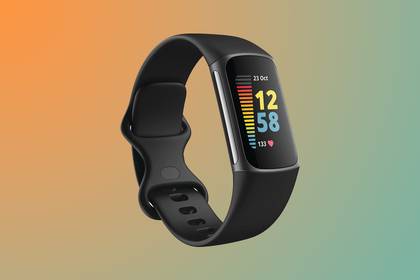
Imagine the excitement of having the latest features and improvements right on your wrist with your Fitbit Charge 5. Keeping your device updated isn’t just about getting the newest cool features; it’s about ensuring your fitness tracker is running smoothly, effectively, and securely.
You might be wondering how you can effortlessly update your Fitbit Charge 5, and that’s exactly what we’re here to guide you through. In just a few simple steps, you can elevate your fitness tracking experience to a whole new level.
By the end of this guide, you’ll be more confident in managing your device updates, ensuring you’re always at the forefront of fitness technology. Let’s dive in and make sure your Fitbit Charge 5 is as up-to-date as you are motivated!
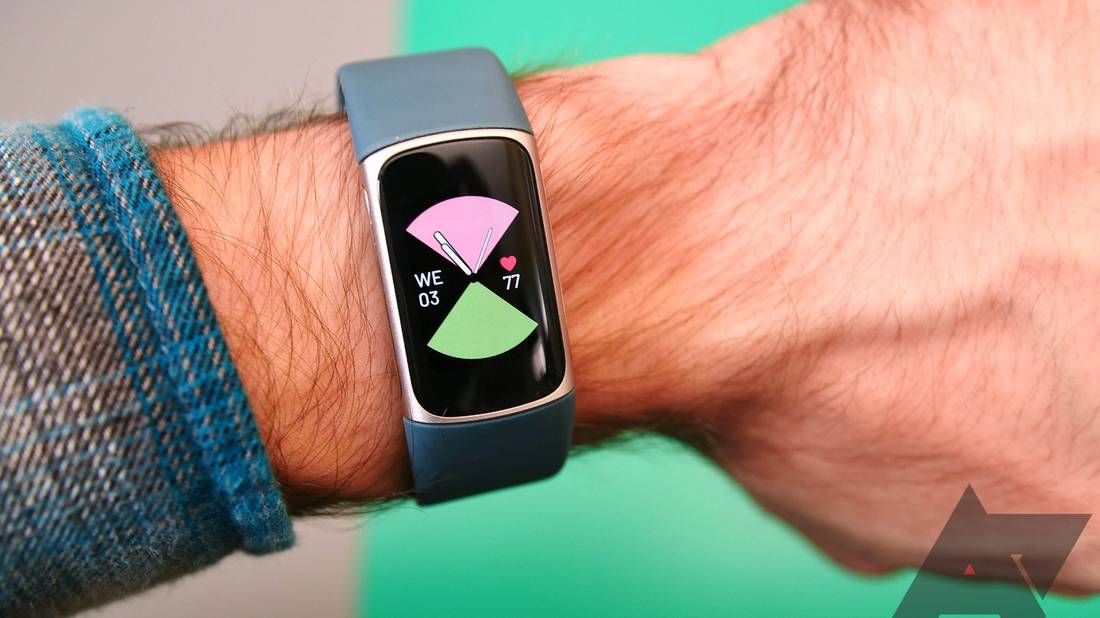
Credit: www.androidpolice.com
Prepare Your Fitbit Charge 5
Before updating your Fitbit Charge 5, it is important to prepare your device. Proper preparation helps the update run smoothly.
Follow these steps to get your Fitbit ready for the latest update.
Charge Your Device Fully
Make sure your Fitbit Charge 5 has enough battery before starting the update. A full charge prevents the device from turning off during the process.
Connect your device to the charger and wait until the battery is 100% full.
Connect To Wi-fi Or Bluetooth
Keep your Fitbit Charge 5 connected to your phone via Bluetooth. This connection allows the update to download and install.
Ensure your phone has a stable internet connection, either through Wi-Fi or mobile data, during the update.
- Turn on Bluetooth on your phone
- Open the Fitbit app and connect your device
- Use Wi-Fi for faster update downloads
Update Fitbit App
Before updating your Fitbit Charge 5, check that the Fitbit app on your phone is up to date. The app manages the update process.
Go to your phone’s app store and download any available updates for the Fitbit app.
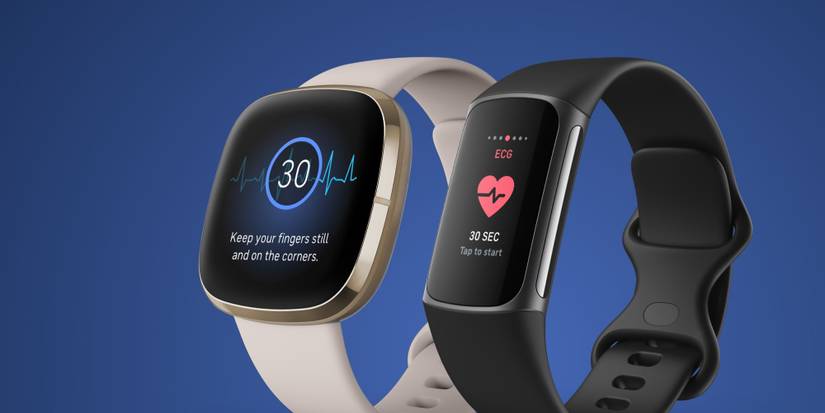
Credit: screenrant.com
Check For Firmware Updates
Keeping your Fitbit Charge 5 updated ensures it works well. Firmware updates fix bugs and add features.
You can check for updates easily using the Fitbit app on your phone.
Open Fitbit App
Start by opening the Fitbit app on your smartphone. Make sure your phone is connected to the internet.
Log in to your Fitbit account if needed to access your device settings.
Navigate To Device Settings
Tap the profile icon in the app to view your devices. Select your Fitbit Charge 5 from the list.
Scroll down to find the device settings menu where update options are located.
- Open the Fitbit app
- Tap the profile icon
- Select Fitbit Charge 5
- Go to device settings
Identify Available Updates
Within device settings, look for a section called “Firmware Update” or “Update Available.” This shows if your device needs updating.
If an update is available, follow the instructions to download and install it on your Fitbit Charge 5.
- Check for update notification
- Tap to start the update
- Keep your Fitbit close to your phone
- Wait until the update finishes
Start The Update Process
Updating your Fitbit Charge 5 keeps it working smoothly. The update adds fixes and new features.
Begin the update process carefully to avoid problems. Follow the steps below to start.
Initiate Firmware Download
Open the Fitbit app on your phone. Make sure your Charge 5 is nearby and connected.
Go to the device settings in the app. Tap on the update notification if available.
- The app will check for new firmware.
- Tap “Download” to start getting the update.
- Do not close the app while downloading.
Ensure Stable Connection
Keep your Charge 5 close to your phone during the update. This keeps the Bluetooth connection strong.
Make sure your phone has good internet. A weak connection can stop the update.
- Keep the phone and Charge 5 within 6 feet.
- Avoid moving away or switching apps on your phone.
- Charge your Fitbit to at least 50% before updating.
Monitor Update Progress
You will see a progress bar on your Fitbit and the app. It shows how much of the update is done.
Do not turn off your devices or close the app. Wait until the update finishes completely.
- The Charge 5 may restart during the update.
- Do not disconnect Bluetooth until the update ends.
- Check the app for a success message.
Troubleshoot Update Issues
Updating your Fitbit Charge 5 can sometimes run into problems. These issues can stop the update or cause it to fail.
Try simple fixes before looking for advanced help. These tips often solve common update problems.
Restart Your Fitbit
Restarting your Fitbit Charge 5 can clear minor glitches. This helps the update process work better.
To restart your Fitbit, press and hold the button for 8 seconds. Release it when the Fitbit logo appears.
Restart Your Phone
Your phone connects to Fitbit for updates. Restarting it can fix connection problems.
Turn off your phone, wait 30 seconds, then turn it back on. Try updating Fitbit again.
Reinstall Fitbit App
The Fitbit app controls updates. Reinstalling it can fix app errors or bugs.
- Delete the Fitbit app from your phone.
- Go to your app store and download the Fitbit app again.
- Log in and try updating your Fitbit Charge 5.
Contact Fitbit Support
If updates still fail, contact Fitbit Support. They can help with complex issues.
Visit the Fitbit website or use the app to find support options. Have your device info ready.
Tips For Smooth Updates
Updating your Fitbit Charge 5 keeps it working well and adds new features. You should follow some simple tips to make updates easy and fast.
These tips help you avoid problems during the update process. They ensure your device stays ready and safe to use.
Keep Device Charged
Make sure your Fitbit Charge 5 has enough battery before starting an update. A low battery can stop the update and cause errors.
Charge your device to at least 50% or keep it on the charger while updating. This helps the process finish without interruption.
Update Regularly
Check for updates often to keep your Fitbit Charge 5 current. Regular updates improve performance and fix bugs.
Don’t wait too long between updates. Smaller updates are easier and faster to install.
Avoid Interruptions
Do not use your Fitbit Charge 5 or close the Fitbit app during updates. Interruptions can cause the update to fail.
- Stay close to your phone or tablet.
- Keep Bluetooth on and connected.
- Do not restart your device during updates.
- Wait until the update finishes before using your Fitbit.

Credit: www.reddit.com
Frequently Asked Questions
How Do I Update My Fitbit Charge 5 Firmware?
To update Fitbit Charge 5, open the Fitbit app on your phone. Ensure Bluetooth is on and the device is nearby. Follow the on-screen prompts to install any available updates. Keep your tracker charged above 50% during the update for smooth installation.
Why Is My Fitbit Charge 5 Not Updating?
If your Fitbit Charge 5 won’t update, check your phone’s Bluetooth and internet connection. Restart both the Fitbit device and your phone. Ensure the Fitbit app is updated to the latest version. Also, keep the tracker charged and close to your phone during the update.
How Long Does A Fitbit Charge 5 Update Take?
A Fitbit Charge 5 update typically takes 5 to 10 minutes. The duration depends on the update size and your internet speed. Keep your device near your phone and avoid interruptions during this time to ensure a successful update.
Can I Update Fitbit Charge 5 Without Wi-fi?
Yes, you can update Fitbit Charge 5 without Wi-Fi using mobile data. Just ensure your phone has an active internet connection. The Fitbit app uses your phone’s data to download updates and sync with your device via Bluetooth.
Conclusion
Updating your Fitbit Charge 5 keeps it working well. It brings new features and fixes bugs fast. Make sure your phone and Fitbit app are ready. A simple update helps track your health better. Don’t skip updates to enjoy the best experience.
Stay connected and check for updates often. Your Fitbit will stay fresh and helpful this way. It only takes a few minutes but makes a big difference. Keep your device updated and enjoy every step you take.


